T-Mobile’s Family Allowances service provides a comprehensive way to manage and monitor phone usage for all lines on your account.
One of the features of Family Allowances is the ability to block data usage for specific lines. In this article, we will discuss the steps to block data in T-Mobile Family Allowances.
To block data usage for a specific line using T-Mobile Family Allowances, you need to sign in to your T-Mobile account, navigate to the Family Allowances section, select the line you want to manage, and toggle the “Data” switch to the off position.
Below are the detailed steps:
Step 1: Sign in to Your T-Mobile Account
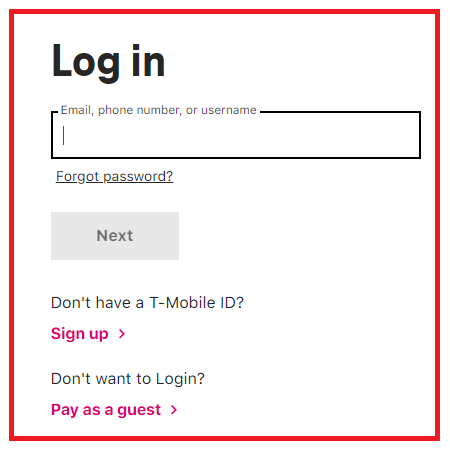
To access Family Allowances, you must first sign in to your T-Mobile account. You can do this by visiting the T-Mobile website or by using the T-Mobile app on your smartphone.
Step 2: Navigate to Family Allowances
Once you have signed in to your T-Mobile account, navigate to the Family Allowances page. You can do this by clicking on the “Plans & Services” tab and selecting “Family Allowances” from the dropdown menu.
Step 3: Select the Line to Block Data Usage
To block data usage for a specific line, click on the “Add a User” button. From there, you can select the line you want to manage.
Step 4: Block Data Usage
To block data usage for the selected line, click on the “Edit” button next to that line. From there, you can toggle the “Data” switch to the off position.
Step 5: Save Changes
After you have blocked data usage for the selected line, click on the “Save” button to confirm your changes.
Step 6: Verify Data Block
To verify that data usage has been successfully blocked for the selected line, you can check the usage details for that line.
Click on the “View Usage” button and select the line you want to check. If data usage has been successfully blocked, the data usage details should show 0 MB used.
Step 7: Adjust Settings as Needed
If you need to adjust the data block settings for the selected line, you can do so by clicking on the “Edit” button next to that line.
From there, you can toggle the “Data” switch to the on position to allow data usage, or you can adjust the data usage limit as needed.
