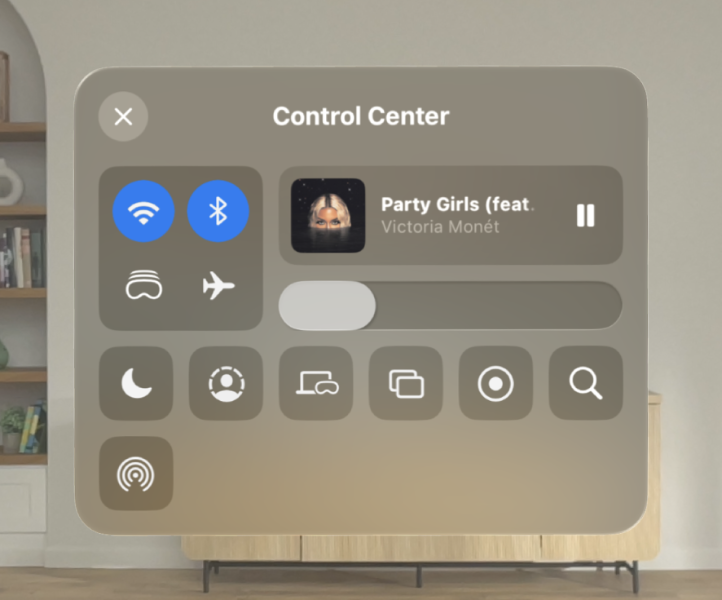
When using Apple Vision Pro, the Control Center is an essential feature that allows users quick access to various settings and controls.
However, some users may encounter an issue where the Control Center does not appear as expected.
If you’re facing this problem then there is no need to worry anymore as we are here to help!
In this article, we will discuss in detail why Control Center not showing on Apple Vision Pro and exactly how you can solve it.

Why is the Control Center not showing on Apple Vision Pro?
There could be several reasons why the Control Center is not showing on an Apple Vision Pro device as we have discussed below.
1. Misconfigured Settings or User Error
The Control Center might not appear if it hasn’t been set up properly in the device’s settings or if the user is not performing the correct gesture or looking in the right place.
2. Software Glitches or Bugs
Software issues can cause the Control Center to malfunction or not appear at all. This could be due to:
- A bug in a new update of the operating system that hasn’t been patched yet.
- A temporary glitch in the system.
- Corruption of system files that might require a more in-depth reset or a software update to fix.
3. Hardware Malfunctions
Although less common, hardware problems could affect the display or sensors involved in detecting the user’s gestures or eye movements, leading to the Control Center not showing up:
- If the sensors that detect the user’s gaze or touch inputs are not working correctly, the device may not be able to display the Control Center as it doesn’t register the user looking up or tapping the correct area.
- Display issues could prevent the Control Center from being visible even though it’s being summoned correctly.
How To Fix Control Center Not Showing Up On Apple Vision Pro?
To fix Control Center not showing Up On Apple Vision Pro, tap on the top of your screen, update Apple Vision Pro software and reset the settings. Additionally you can also restart your device to see whether that fixes the issue.
1. Tap on the Top of Your Screen
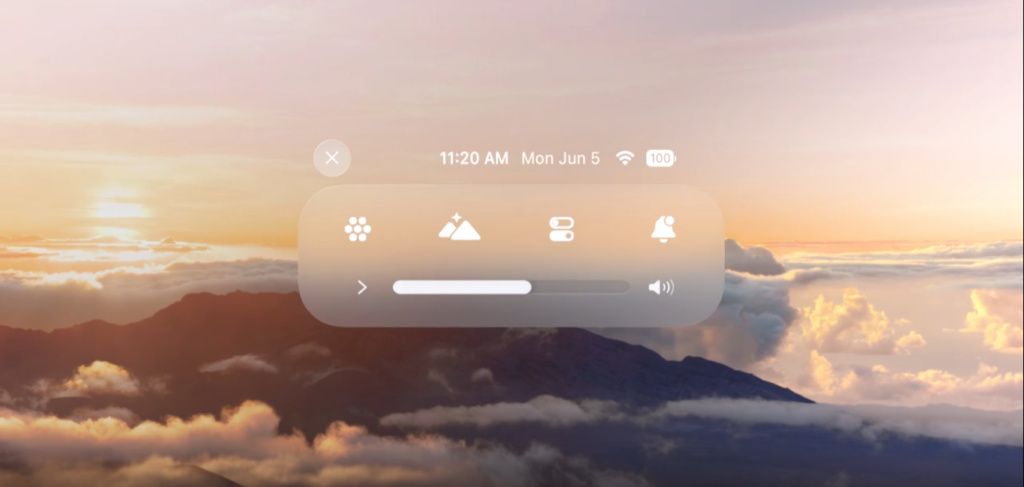
Glance upwards and press the button at the top. If you can’t see the button, don’t move your head, just look up to check that no apps are in the way at the top.
2. Check The Control Center Settings
The first step is to ensure that the Control Center settings are configured correctly:
- Go to Settings > Control Center on your Apple Vision Pro device.
- Make sure that the Control Center is set to appear where you expect it to. You can adjust how high or low the button appears within this menu.
3. Restart Your Device
If the Control Center settings are correct but the issue persists, try restarting your device.
To initiate a restart on your Apple Vision Pro, firmly press down on both the upper button and the Digital Crown simultaneously and maintain this hold until the screen goes completely dark.
It’s important to continue holding these buttons even if you see the screen presenting options to force quit apps or to power off the device. Feel free to remove your Apple Vision Pro during the reboot process.
As the device reboots, look for the Apple emblem to materialize on the primary screen. If the logo doesn’t show up right away, keep pressing the upper button for a bit longer until it does.
A restart can often resolve temporary software glitches that may prevent the Control Center from displaying.
4. Update Apple Vision Pro Software
Running outdated software can sometimes cause issues with features like the Control Center. Ensure your Apple Vision Pro is running the latest version of visionOS:
- Go to Settings > General > Software Update.
- If an update is available, download and install it.
5. Reset All Settings
If the Control Center still isn’t showing up, you might need to reset all settings on your device. This will not erase your data but will reset system settings to their defaults:
- Go to Settings > General > Transfer or Reset Apple Vision Pro > Reset.
- Tap on Reset All Settings and confirm.
6. Contact Apple Support
If none of the above solutions work, it may indicate a more serious issue with your device. In this case, it’s best to contact Apple Support for further assistance. They can provide more in-depth troubleshooting or repair options.
