If you’ve forgotten the passcode to your Apple Vision Pro and find yourself locked out of the device, regaining access will require a few steps.
Apple’s security features are designed to protect your personal information, but they also provide methods to restore access if you have the necessary credentials.
In this detailed guide, we will show you how to regain access to your Apple Vision Pro if you’ve forgotten your passcode.
What are the Steps To Regain Access If You Forgot Passcode On Apple Vision Pro?
There are three ways you can unlock your Apple Vison Pro when you have forgotten the Passcode, one is by using Optic ID, through Apple ID or by contacting Apple Support.
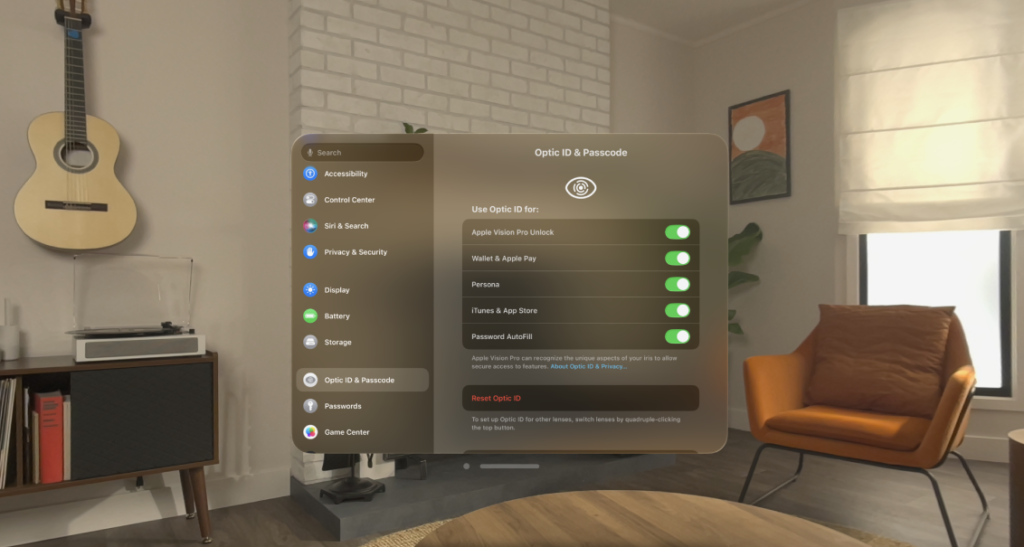
Method 1. Determine If You Have an Optic ID Set Up
If you set up an Optic ID on your Apple Vision Pro, you might be able to unlock the device using your biometric data (such as a facial scan or fingerprint), depending on the model.
To use Optic ID, wake the device and then follow the prompts to unlock with your biometric data.
Method 2. Use Apple ID to Unlock
For some security issues, especially if you’ve entered the wrong passcode too many times, you might be prompted to use your Apple ID to unlock the device. If prompted, enter your Apple ID and password to regain access.
If you’re logged in with your Apple ID on your Apple Vision Pro and forget your passcode, don’t worry. You can get back into your device by deleting everything on it and starting over.
If you type in the wrong passcode four times in a row, your Apple Vision Pro will tell you it’s locked. To fix this, you’ll need to erase everything on it and set it up again like it’s new.
How to Erase and Setup Apple Vision Pro When You Forgot the Passcode?
In case you have forgotten your passcode in Apple Vision Pro and have entered it wrong for 4 times, then you need to complete the setup again after erasing all the data.
- Press the “Forgot Passcode?” option when it pops up after four failed passcode tries.
- Select “Start Apple Vision Pro Reset.”
- If prompted, connect to a Wi-Fi network.
- Type in your Apple ID password to log out.
- Confirm by choosing “Erase Apple Vision Pro,” then remove the Apple Vision Pro.
- Once the Apple Vision Pro has wiped and rebooted, wear it again and follow the on-screen instructions to set up visionOS.
Method 3. Contact Apple Support
You can send your Apple Vision Pro device to a nearby Apple Store and they will reset the Passcode for you.
If you have no Apple Store near you then you will need to contact the Apple Support Team and they will be able to reset the Passcode for you. After that, you can again set a Passcode on your device.