Removing an admin from Meta Business Suite is a crucial task to manage access and maintain security.
Whether an admin has left the organization or their role needs to be adjusted, the process ensures proper control over the business suite account. By following specific steps within the Meta Business Suite interface, an admin can be removed effectively.
This action helps safeguard sensitive information and ensures that only authorized individuals have access to the account.
Understanding the correct procedure for removing an admin is essential for maintaining the integrity and security of the Meta Business Suite.
What is Admin Role in Meta Business Suite?
As the owner or manager of a Meta Business Suite account, you have the ability to assign admin roles to other users. Admins have access to important features and settings, such as managing pages, ad accounts, and people.
It’s important to note that removing someone’s admin access does not remove them from your account entirely.
They will still have access to any assets they were previously granted access to, such as pages or ad accounts. However, they will no longer be able to perform certain actions, such as creating new pages or adding new people to the account.
Things To Do Before Removal of Any Meta Business Suite Account’s Admin
Before you remove an admin from your Meta Business Suite account, you need to take some preparation steps.
These steps will help you ensure that the admin’s access is removed properly and that your business account remains secure.
Step 1: Review the Admin’s Role
The first step is to review the admin’s role in your Meta Business Suite account. You need to make sure that the admin you are removing does not have any critical roles that are necessary for your business operations.
Step 2: Communicate with the Admin
The second step is to communicate with the admin you are removing. You need to inform the admin about your decision and the reasons for the removal.
This will help you avoid any misunderstandings or conflicts with the admin. You should also remind the admin to remove any personal data or information from your business account before the removal.
Step 3: Backup Important Data
The third step is to back up any important data or information in your Meta Business Suite account. This will help you avoid any loss of data or information during the removal process.
You can use the backup data to restore your business account to its previous state if anything goes wrong during the removal process.
Step 4: Revoke Access to Third-Party Apps
The fourth step is to revoke access to any third-party apps that the admin has access to. This will help you ensure that the admin cannot access your business account through any third-party apps.
You can do this by going to the “Apps” section in your Meta Business Suite account and revoking access to any apps that the admin has access to.
Steps To Remove Admin From Meta Business Suite Account
- Log into your Meta Business Suite account.
- Click on “Business Settings” in the left sidebar.
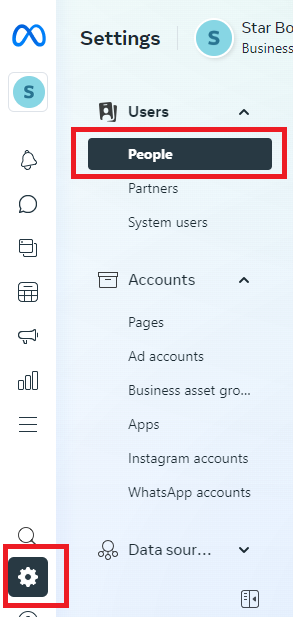
- Under “People“, select the admin you want to remove.
- Click the three dots menu icon in the top right corner of their profile.
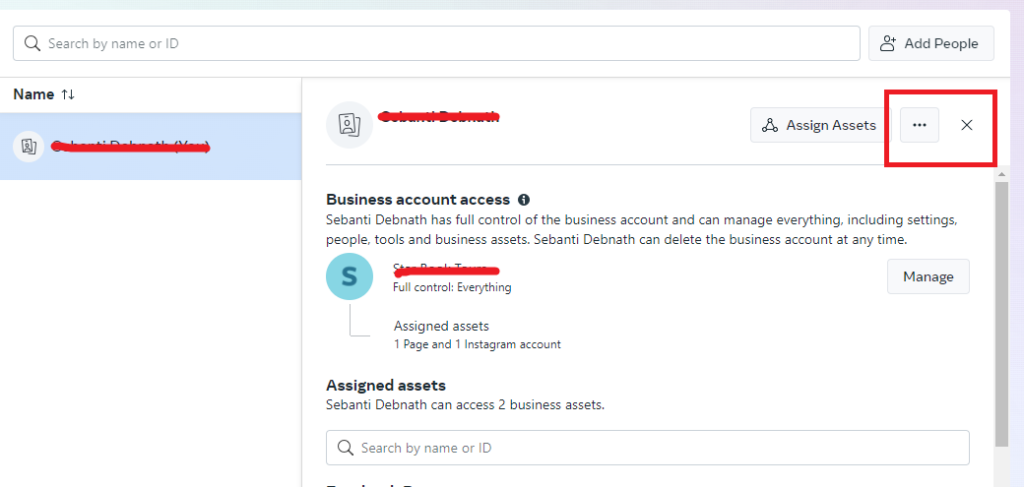
- Select “Remove From Business” from the dropdown.
- A popup will appear asking you to confirm removing them. Click “Remove“.
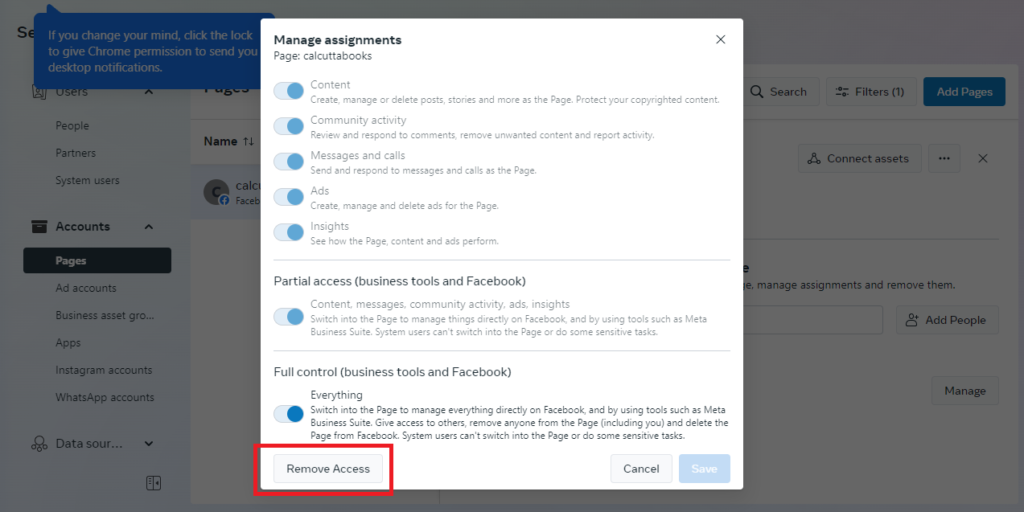
Note: The removed admin will no longer have access to manage your Meta Business Suite account or any assets like Pages, ads accounts, etc. linked to it. However, they may still have residual access depending on their admin permissions before removal. For full removal, it’s best to change all account passwords as well.
You can also remove individual page access of the admin without fully removing them from the Business Suite by editing the specific Page settings.
Be aware the removed admin may still have access to any ads accounts or other assets they previously created until those are also changed/transferred.
If you’re having trouble removing an admin from your account, you can refer to the Meta Business Help Center for more information.
