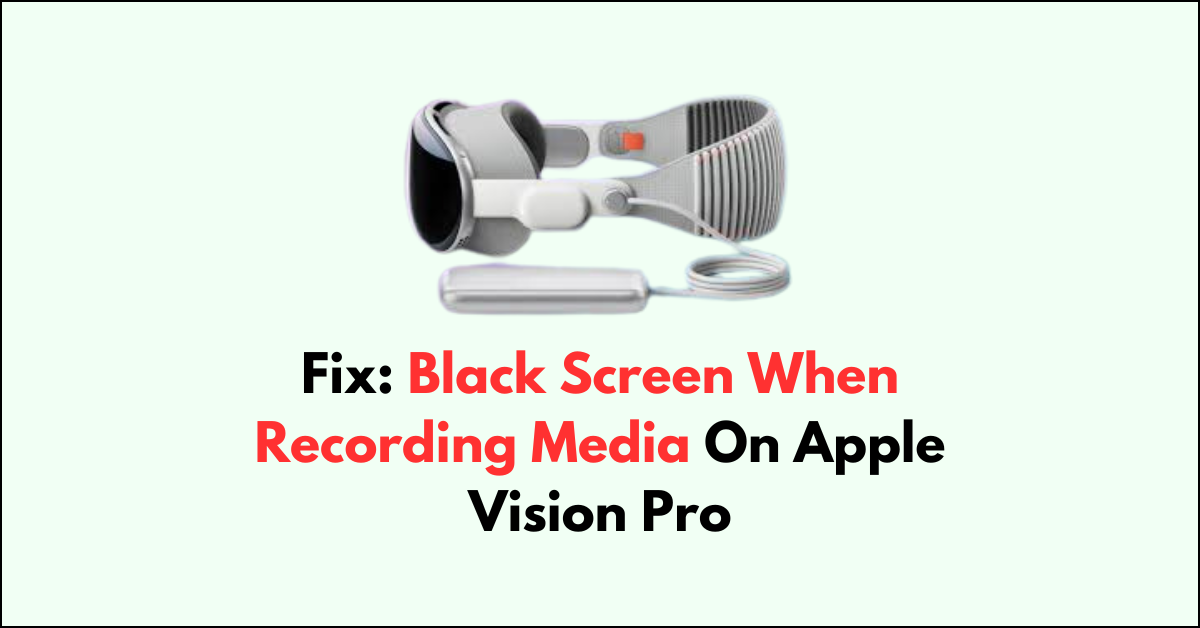
Experiencing a black screen when attempting to record media on your Apple Vision Pro can be a bothersome issue.
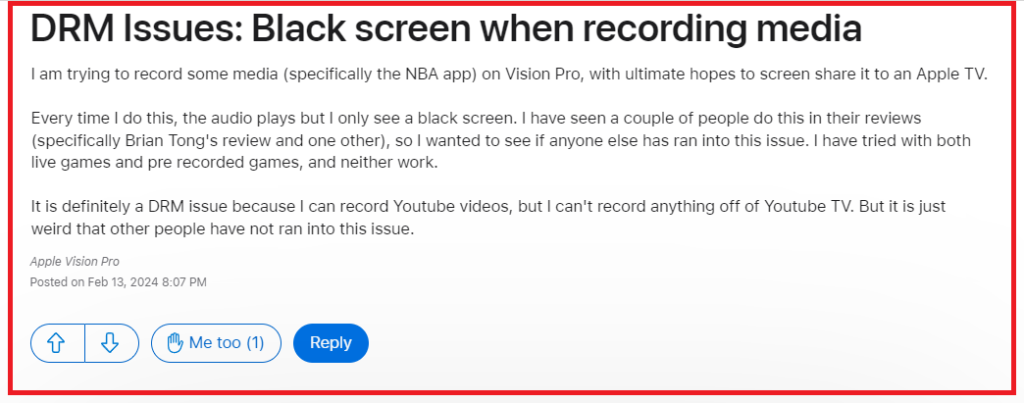
This problem is often due to Digital Rights Management (DRM) protection, which is designed to prevent unauthorized copying and sharing of digital media. However, the issue can also happen due to other glitches and bugs in Apple Vision Pro.
In this article, we have explored and discussed all the fixes in detail that can help you to fix the issue of “Black Screen When Recording Media On Apple Vision Pro”.
How To Fix Black Screen When Recording Media On Apple Vision Pro?
To fix “Black Screen When Recording Media On Apple Vision Pro”, you can check for software restrictions, and update Apple Vision Pro. Additionally, you can also reset Apple Vision Pro to fix the issue.
1. Check for Software Restrictions
Before diving into more complex solutions, ensure that your recording issue isn’t a result of software restrictions within the Apple Vision Pro itself.
Go into the device settings and confirm that screen recording is enabled and that no settings are preventing the recording of media.
- Open Settings: Access the Settings app on your Apple Vision Pro.
- Navigate to Control Center: Scroll down and tap on Control Center.
- Customize Controls: Look for the option to customize controls.
- Add Screen Recording: Find Screen Recording in the list of available controls and tap the plus (+) icon next to it to add it to the Control Center.
- Start Recording: Tap the Screen Recording button (it looks like a solid circle inside a ring) to start recording your screen.
2. Update Your Apple Vision Pro
Running outdated software can cause a variety of issues, including recording problems. To check for updates:
- Go to Settings.
- Select General.
- Tap on Software Update.
- If an update is available, follow the prompts to install the latest version of VisionOS.
3. Disable Screen Recording Restrictions
Some apps may have built-in restrictions that prevent screen recording. If possible, check the app’s settings or documentation to see if there’s an option to enable recording.
If not, you may not be able to record content from that particular app due to DRM.
4. Reset Your Apple Vision Pro
If you’re still facing issues, try resetting your device. This can often resolve unexplained glitches affecting functionality:
- Press and hold the top button and the Digital Crown until the display turns black.
- Wait for the device to restart.
- Once the device is back on, attempt to record the screen again.
6. Contact Apple Support
If none of the above steps work, the issue might be more complex and require professional assistance. Reach out to Apple Support for further guidance. They
can provide you with troubleshooting steps specific to your device and may even offer a repair or replacement if necessary.
