Are you looking to customize the appearance of your Apple Vision Pro to suit your preferences?
With the ability to switch between light and dark modes, you can create the perfect visual environment for your device.
In this article, we will guide you through the simple steps to change the environment appearance to light or dark on your Apple Vision Pro.
How to Change Environment Appearance to Light or Dark on Apple Vision Pro
To change the environment appearance to light or dark on Apple Vision Pro: Glance upwards to see the Green Dot, pinch to access Control Center, select environment, and tap to switch between Light and Dark Mode.
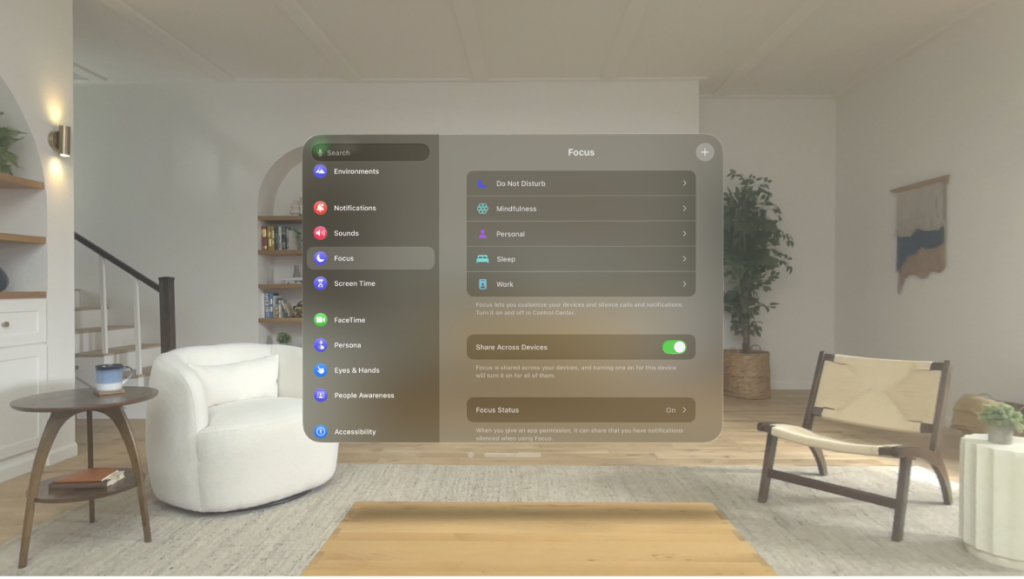
Down below, we have discussed this in step-by-step detail.
Step 1: Start by looking upwards
With your Apple Vision Pro on, simply move your eyes to glance at the top of the display where you’ll find the Green Dot.
Step 2: Access the control
Once you spot the Green Dot, use a pinch gesture with your fingers to select it.
Step 3: Select the environment setting
After you’ve accessed the control, look for the option to select your environment. This is where you’ll be able to choose between different modes.
Step 4: Switch between light and dark mode
In the environment settings, you’ll see the options for light and dark mode. Tap the one you want to switch to. Light mode is like daytime, and dark mode is like nighttime.
Step 5: Automatic mode
If you prefer the mode to change based on the actual time of day, select the automatic option. This will synchronize the environment setting with the local time, giving you a natural transition from light to dark as the day progresses.
Step 6: Try it with different environments
Remember, this setting isn’t just for one environment. You can change the appearance for each environment you explore on your Apple Vision Pro.
