Are you ready to take control of your Optimum Stream experience?
Pairing and programming your Optimum Stream remote is a simple process that will enhance your viewing by allowing you to navigate through channels and settings with ease.
In this article, we will walk you through the simple and easy-to-follow instructions for pairing and programming your remote.
how to connect remote to optimum cable box
Pairing Your Optimum Stream Remote
Step 1: Prepare Your Remote
Turn on your TV, remove the back cover of your Optimum Stream remote, and insert the two AAA batteries provided.
Step 2: Power On
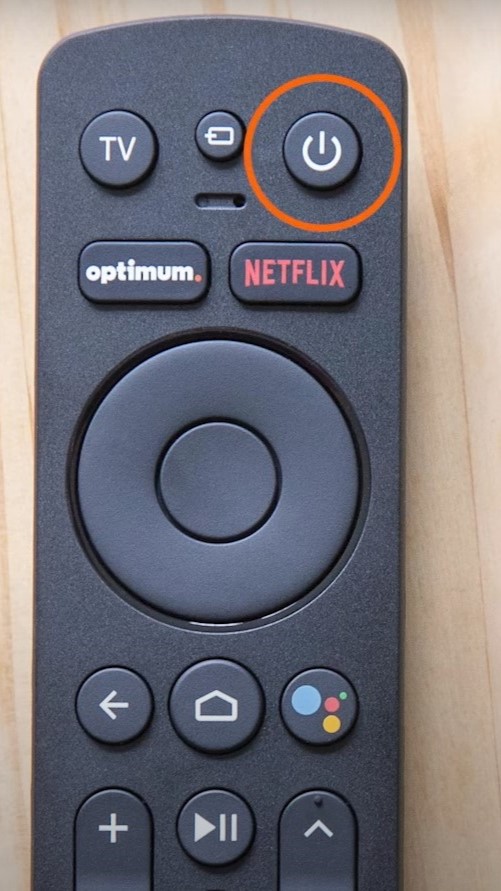
Point the remote directly at the Optimum Stream box and press the power button to turn it on.
Step 3: Access Settings
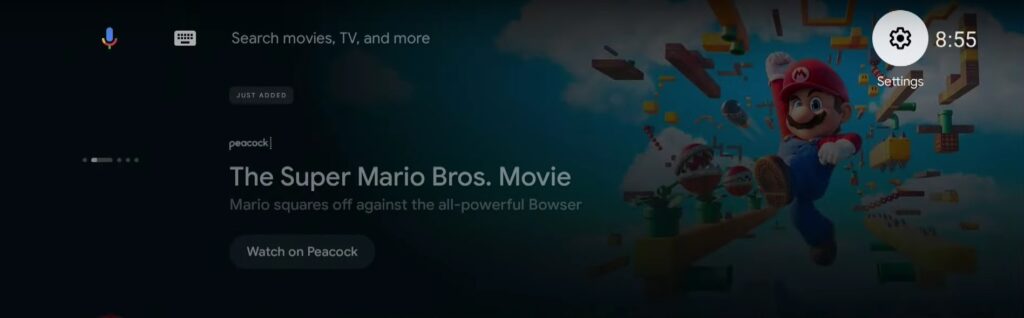
Press the home button on your remote, navigate to ‘Settings‘, then ‘Remote and Accessories‘, and select ‘Add Stream Remote‘.
Step 4: Pairing Mode
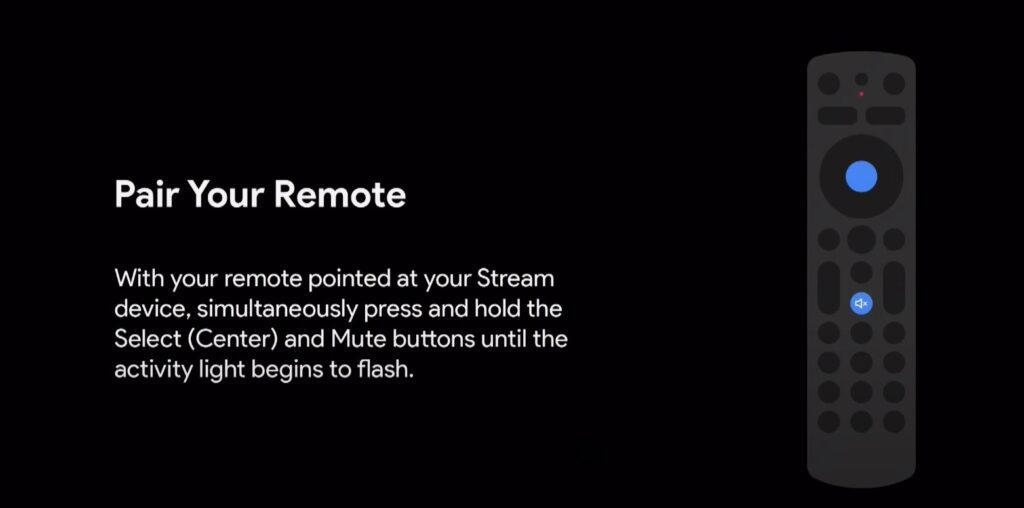
When you see the ‘Pair Your Remote‘ screen, point the remote at the Stream device and simultaneously press and hold the ‘Select‘ and ‘Mute‘ buttons for around five seconds until the pairing light flashes.
Step 5: Complete Pairing

Upon successful pairing, a message will appear. Select ‘Continue‘ to finalize the pairing, and then press the home button to return to the main screen.
Program Your Remote to Control Your TV
Step 1: Navigate to Settings
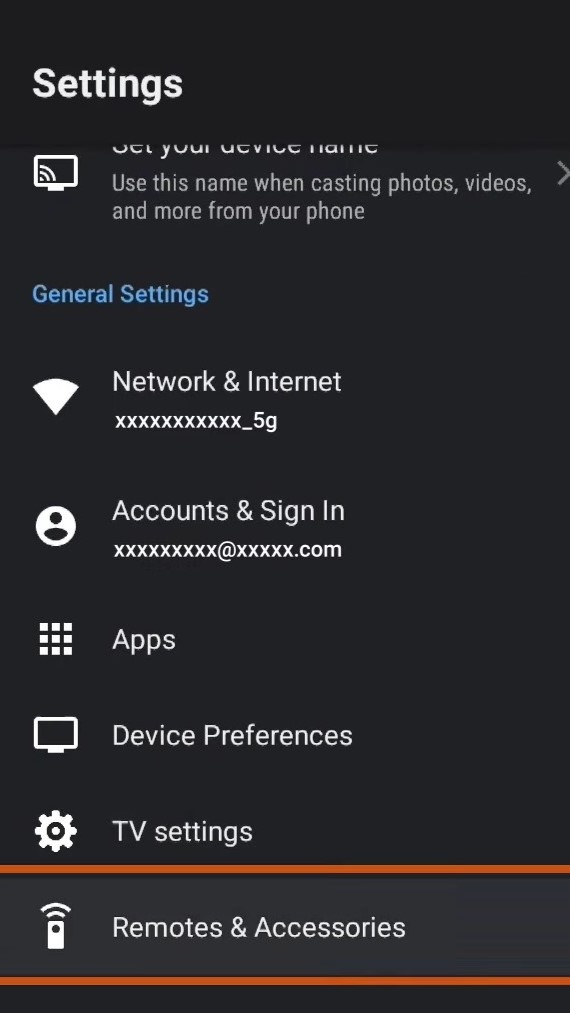
From the home screen, go to ‘Settings‘, choose ‘Remote and Accessories‘, then select ‘Stream Remote‘.
Step 2: TV Setup
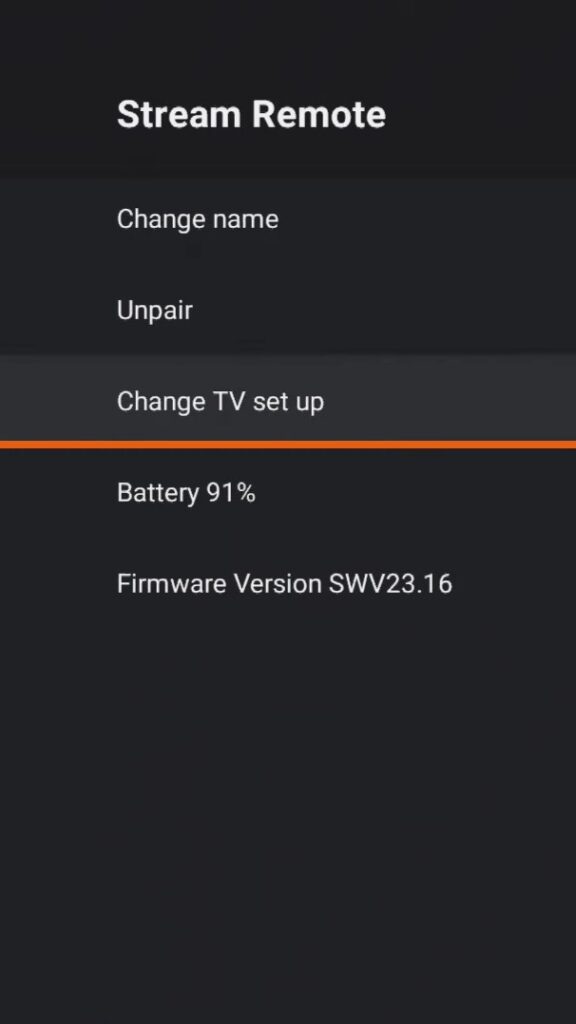
Choose ‘Change TV Setup‘. With the remote pointed at your TV, press the volume up and down buttons.
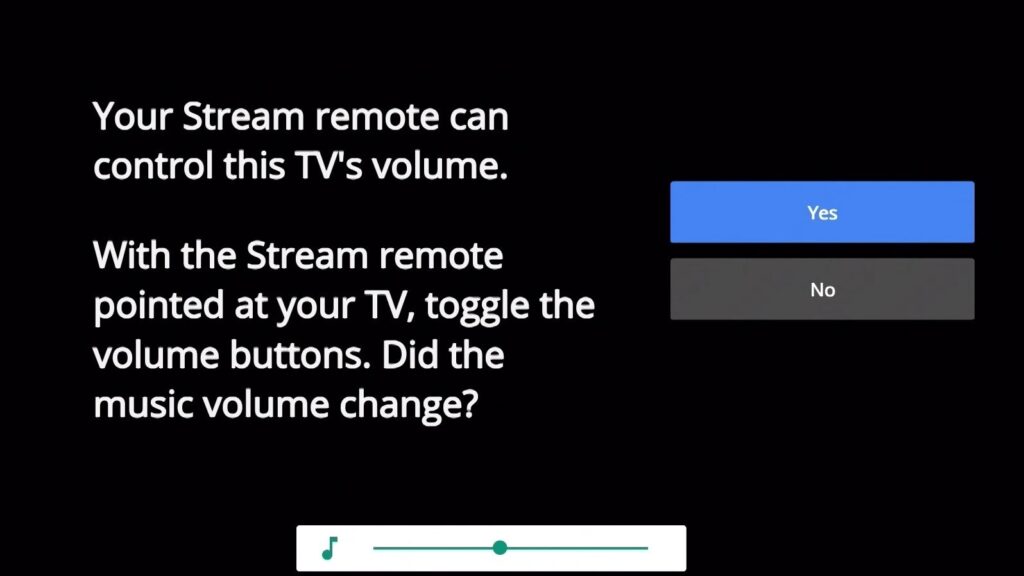
Step 3: Confirm Volume Control

If the volume changes, select ‘Yes’ to complete the programming process. If it doesn’t change, select ‘No‘.
Step 4: Select TV Brand
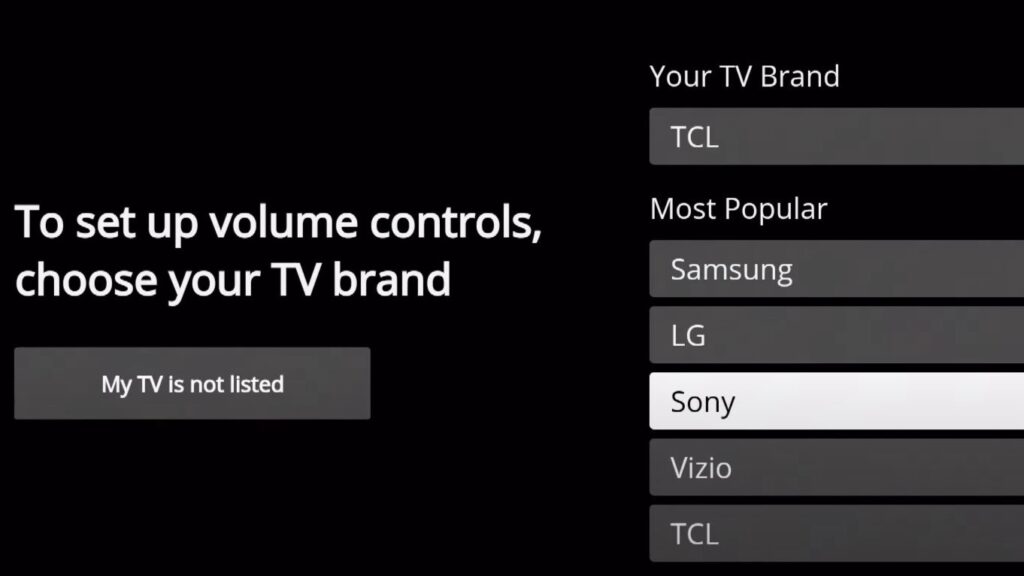
Find your TV brand from the list provided and press ‘Select‘.
Step 5: Volume Adjustment
Press and hold the volume up button on the remote until the TV volume begins to change.
Step 6: Final Test
Test the volume control one last time. With the remote pointed at your TV, press the volume up and down buttons. If the volume changes, select ‘Yes‘.
Troubleshooting Tips
If you encounter any issues and don’t see the ‘Change TV Setup’ option while programming your remote, follow these steps:
- Press the ‘Optimum‘ button to open the Optimum TV app. Then, press the home button to return to the home screen.
- Navigate to ‘Settings‘, then ‘Remote and Accessories‘, and select ‘Stream Remote‘. You should now see the ‘Change TV Setup‘ option.
