Are you looking to take control of your Apple Vision Pro’s Sleep Focus mode?
With the latest update, Apple has introduced a convenient way to manage this feature right from your Control Center.
In this article, we will guide you through the simple steps to turn on or off Sleep Focus mode using the Control Center on your Apple Vision Pro.
How to Turn On/Off Sleep Focus Mode in Control Center?
To turn on/off sleep focus mode in the control center: Swipe to access the Control Center, pinch to open, press and hold the Sleep icon, then tap to toggle Sleep Focus Mode.
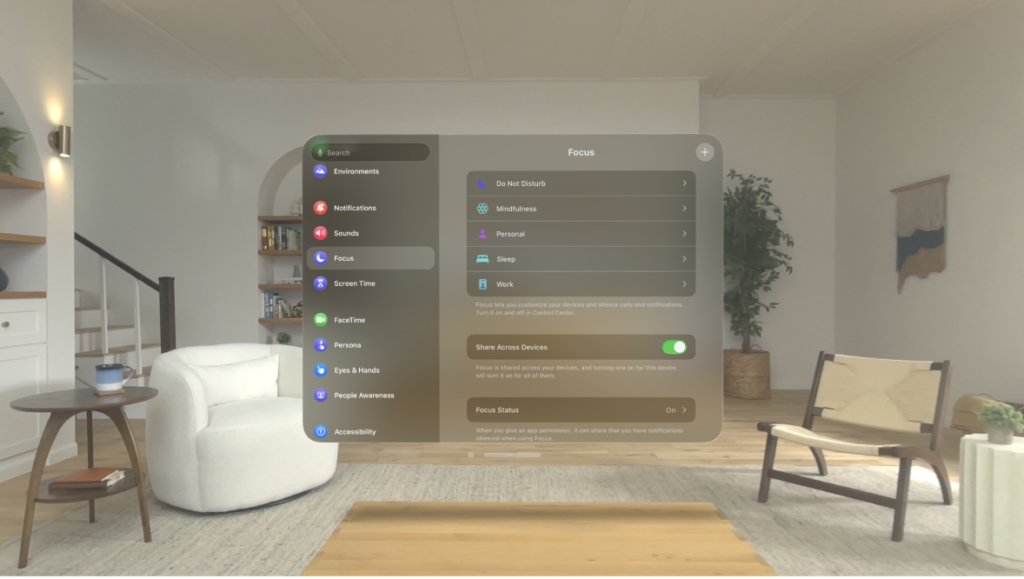
Down below, we have discussed this in step-by-step detail.
Step 1: Access the Control Center
Start by looking up above your app grid until you see the Green Dot. This is your cue to open the Control Center.
Step 2: Pinch to Open
With the Green Dot in view, pinch your fingers together as if you’re zooming out on a photo to open the Control Center.
Step 3: Activate Sleep Mode
In the Control Center, find the Sleep icon, which looks like a bed. Press and hold down on this icon.
Step 4: Select Sleep Mode
After you press the Sleep icon, you’ll see the option to turn on Sleep Mode. Tap it to enable the feature.
Step 5: Customize Settings (Optional)
If you want to allow certain notifications through while in Sleep Mode, tap the three dots on the Sleep Mode button. This will let you customize which calls or alerts can reach you.
